Getting Started: Difference between revisions
From MechaWiki
More actions
No edit summary |
No edit summary |
||
| Line 18: | Line 18: | ||
<div class="mecha-selector"> | <div class="mecha-selector"> | ||
<input type="radio" name="mecha-os" id="os-mechanix" checked> | <input type="radio" name="mecha-os" id="os-mechanix" checked hidden> | ||
<input type="radio" name="mecha-os" id="os-debian"> | <input type="radio" name="mecha-os" id="os-debian" hidden> | ||
<input type="radio" name="mecha-os" id="os-arch"> | <input type="radio" name="mecha-os" id="os-arch" hidden> | ||
< | <div class="mecha-selector-buttons"> | ||
</ | <label for="os-mechanix"> | ||
Mechanix (Default) | |||
</label> | |||
<label for="os-debian"> | |||
Debian | |||
</label> | |||
< | <label for="os-arch"> | ||
Arch | |||
</label> | |||
<div | </div> | ||
< | <div class="mecha-selector-content"> | ||
< | <div class="mecha-os-content mechanix"> | ||
</ | <h3>Mechanix Setup</h3> | ||
<ol> | |||
<li>Power on your Comet</li> | |||
<li>Complete welcome wizard</li> | |||
<li>Done</li> | |||
</ol> | |||
<div | </div> | ||
< | <div class="mecha-os-content debian"> | ||
</ | <h3>Debian Setup</h3> | ||
<ol> | |||
<li>Download Debian image</li> | |||
<li>Flash to storage</li> | |||
<li>Boot device</li> | |||
</ol> | |||
<div | </div> | ||
< | <div class="mecha-os-content arch"> | ||
</div> | <h3>Arch Setup</h3> | ||
<ol> | |||
<li>Download Arch image</li> | |||
<li>Flash storage</li> | |||
<li>Boot device</li> | |||
</ol> | |||
</div> | |||
</div> | |||
</div> | </div> | ||
</html> | </html> | ||
Revision as of 13:27, 22 February 2026
Getting Started
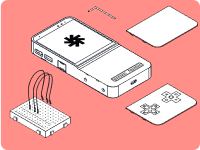
Welcome to the world of Mecha Comet. This guide will help you get started with your Comet, covering setup, core features, and how to make the device truly yours. Need inspiration? No worries! There's plenty to be found. Need help setting up? Head to our Discord or Matrix channels!
Mechanix Setup
- Power on your Comet
- Complete welcome wizard
- Done
Debian Setup
- Download Debian image
- Flash to storage
- Boot device
Arch Setup
- Download Arch image
- Flash storage
- Boot device